OBS Multi-Instance Manager
Manage multiple isolated OBS Studio instances from one Windows PC, with separate scenes, sources, accounts, and streaming configurations.
It runs several independent OBS instances side by side on the same machine, each with its own scenes and settings, so different platforms, accounts, and stream setups never interfere. The manager does not bundle or replace OBS Studio — it drives the copy of OBS you already have.
Built for “one PC, several live rooms”
The fiddly parts of running OBS more than once — building configs, finding folders, opening each program, telling them apart — moved into one window.
Run several OBS instances at once
Launch and close multiple OBS instances from one window — no repeated config edits and no opening each program by hand.
Fully isolated per instance
Each instance is its own copy of the OBS directory, with separate scenes, sources, filters, audio, and stream settings; changes never leak between instances or into your original OBS.
Works with any OBS version
The manager does not bundle OBS. It starts the obs64.exe under the OBS root folder you choose, so different instances can use different OBS Studio versions or locations.
Labels and central management
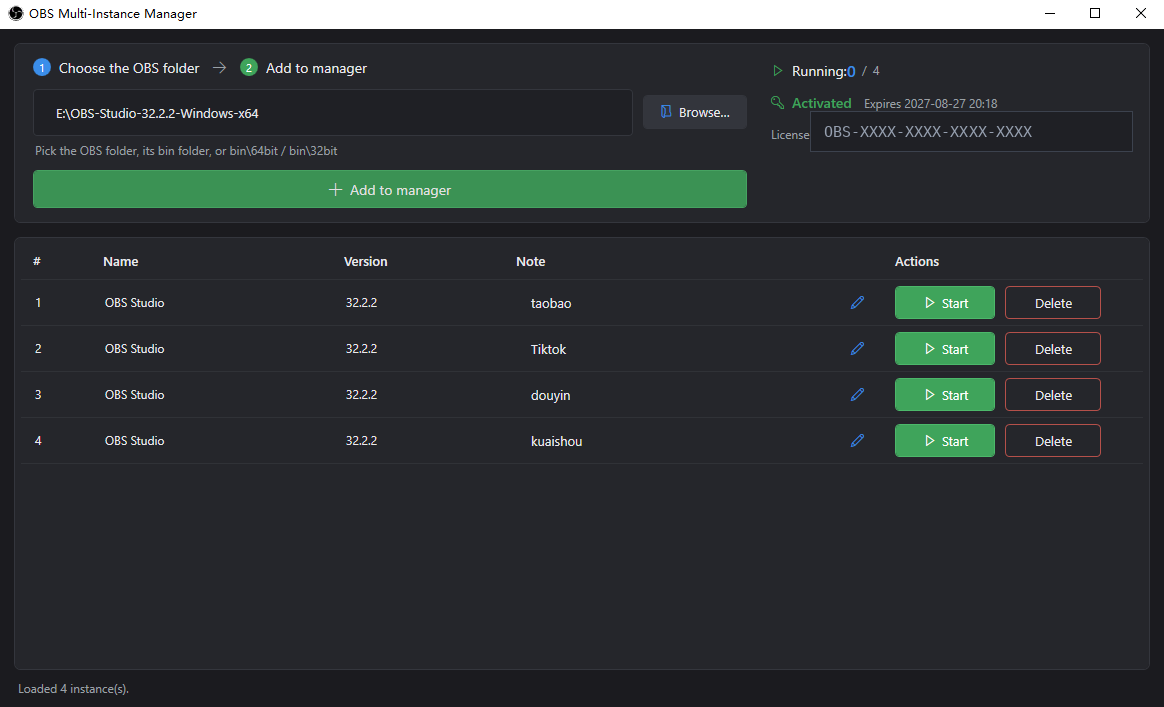
Name each instance and add a note, so the list makes it obvious which one is for which platform, account, or stream setup.
Status and count at a glance
See which instances are running and how many are open, so you can size your setup to the PC you actually have.
Online license with clear status
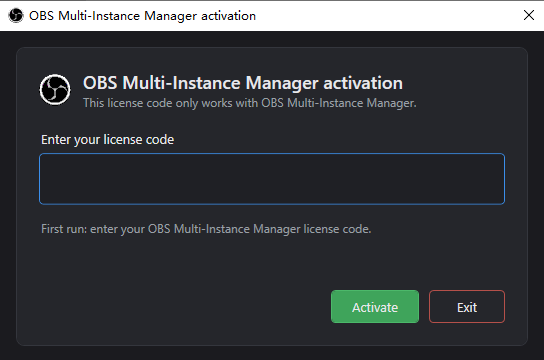
Enter your OBS product activation code on first run; the app shows the activation status, the expiry date, and the code in use.
Interface Preview
These are real screenshots of OBS Multi-Instance Manager. The activation-code field is masked; no real code, account, or streaming data is shown.
See and manage every isolated OBS instance in one place
Enter your OBS product activation code on first run
Three steps to run multiple instances
Get OBS Studio ready
Download and unzip or install standard OBS Studio from its official source (this tool does not include OBS). Also download OBSMultiManager-v1.1.0-en-win-x64.zip from the section below, unzip it to a non-protected folder, and make sure .NET 8 Desktop Runtime is installed.
Add your OBS root folder
Run OBSMultiManager.exe and enter your OBS product activation code on first launch. Then select the OBS root folder that contains bin\64bit\obs64.exe and add it.
Create and start instances
For each stream setup, create an instance — the manager makes an isolated copy of the OBS folder and launches it with --portable --multi — and give it a note. Start instances one at a time; there is no “select several and start them all at once”.
- You need standard OBS Studio installed. This tool neither bundles nor downloads OBS.
- Point the manager at the OBS root folder — the one that contains
bin\64bit\obs64.exe, typically the OBS Studio install folder (for exampleC:\Program Files\obs-studio) or an unzipped portable OBS folder. - Each instance uses its own copied directory and configuration, launched with
--portable --multi, so instances stay isolated. - Deleting a managed item permanently removes that instance's copied folder and its scenes and configuration (this cannot be undone) — but it never touches the source OBS root folder you first selected.
Download OBS Multi-Instance Manager v1.1.0
| Version | v1.1.0 |
|---|---|
| Platform | Windows 10 / 11 64-bit |
| Runtime | .NET 8 Desktop Runtime (x64) |
| Package | Portable ZIP archive (unzip and run, no installer) |
| File size | about 2.6 MB (2,702,590 bytes) |
| SHA-256 checksum |
3578d8264849b984cb87ff41161874c3303aa930430424a8e6d48ac87265da21
|
| Download URL | https://golivebridge.com/downloads/OBSMultiManager-v1.1.0-en-win-x64.zip |
Installation Steps
- Click the button above to download
OBSMultiManager-v1.1.0-en-win-x64.zip. - (Recommended) Verify the file's SHA-256 checksum against the table above to confirm it is complete and untampered.
- Unzip the archive to a non-protected folder (for example
D:\OBSMultiManager\). This is a portable ZIP — there is no installer to run. - Install .NET 8 Desktop Runtime (x64) if your system does not have it.
- Run
OBSMultiManager.exefrom the unzipped folder. - Enter your OBS product activation code on first launch, then add your OBS root folder as in the three steps above.
- The package is distributed only through this site (
golivebridge.com) — do not download it from an unknown third-party site. - Verify the SHA-256 checksum after downloading.
- This page contains no real user data, activation codes, or streaming credentials.
Activation, expiry, and renewal
- Activation: enter your OBS product activation code the first time you open OBS Multi-Instance Manager; it activates and binds to the current PC.
- Status: the app shows the current activated status, the expiry date, and the code in use.
- Duration: Monthly, Quarterly, and Yearly license lengths are available — same features, different validity; the period is counted from first activation.
- Expiry: when the license expires, instance management stops working; the app does not delete instances or configurations you have already created.
- Renewal: renew with your original code. Support extends the expiry from the current expiry date, so renewing early does not lose remaining time.
- Scope: the code works only for OBS Multi-Instance Manager (product
obs_multi_manager) and cannot be used for other products. - Device change / unbind: to move to another PC or release a binding, contact live support for verification.
- No hard cap: the software sets no hard limit on how many instances you can run; the practical number depends on your PC and network resources.
OBS Multi-Instance Manager FAQ
How is this different from multi-platform streaming?
Multi-platform streaming sends one feed to several platforms from a single OBS with one set of scenes. OBS Multi-Instance Manager does something else: it runs several fully separate OBS instances on the same PC, each with its own scenes, sources, filters, and stream target — useful for running several rooms at once or keeping different setups side by side.
Does it work with different OBS versions?
Yes. The manager does not bundle or replace OBS. It starts the obs64.exe under whichever OBS root folder you point it at, so different instances can use different OBS Studio versions or install locations, as long as bin\64bit\obs64.exe exists in that folder.
Are each instance's scenes and configuration isolated?
Yes. Each instance is a separate copy of the OBS directory with its own configuration, launched with --portable --multi. Changes in one instance never reach another, and never touch the OBS you use by hand.
How do I pick the right OBS root folder?
Choose the folder that directly contains bin\64bit\obs64.exe — usually the OBS Studio install directory (for example C:\Program Files\obs-studio) or an unzipped portable OBS folder. Selecting a level above or below means the manager cannot find the executable.
Is there a limit on how many instances I can run?
The software sets no hard limit. How many run smoothly at once depends on your CPU, memory, GPU encoding, and upload bandwidth. Start with 2–3 instances, watch the resource usage, then add more.
How do I renew after the license expires?
Check the code in use inside the app, and give that same code to live support when you renew. Support extends the expiry from the current expiry date, so renewing early does not lose remaining time. Contact support for prices.
What if I move to another computer?
Each code binds to one PC by default. To switch devices or release a binding, contact live support with the details and they will handle the move after verification.
If I delete a managed item, does it delete my original OBS?
It permanently deletes that instance's copied folder and the scenes and configuration inside it — this cannot be undone — but it does not delete the source OBS Studio root folder you first selected. Make sure the instance holds nothing you want to keep before you delete it.